
Team and account
Your account and security
Change your name, photo and password, control your notifications, see how sign-in codes work, sign out of other devices and delete your account.
Your account settings are personal to you, separate from your organisation's settings. To open them, click your name at the bottom of the sidebar, or click the three-dot menu next to it and choose Account settings.
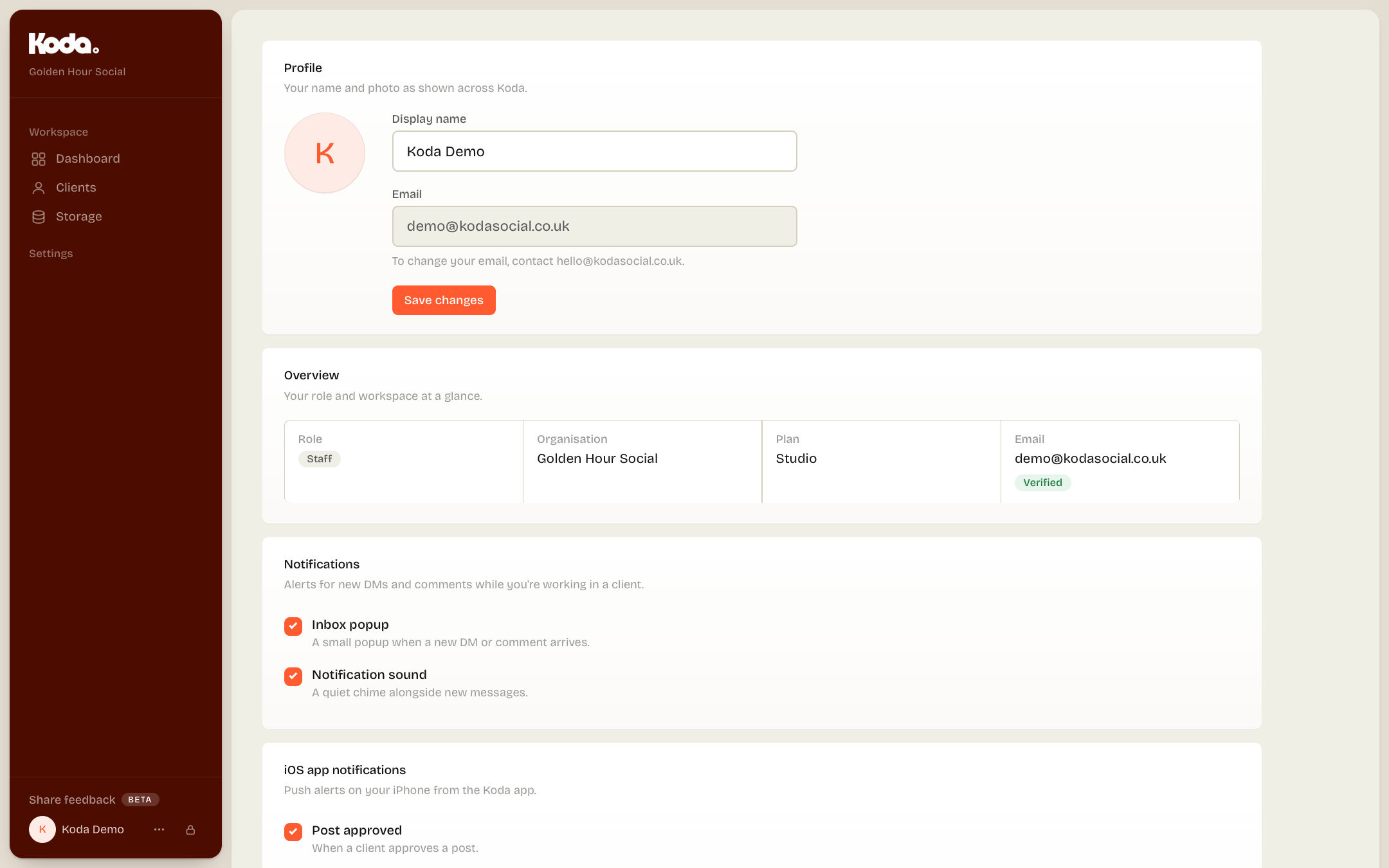
Profile
- Display name: how you appear to your team and clients. Change it and click Save changes.
- Photo: click your avatar to upload a PNG, JPEG or WebP image. Use the remove button to go back to your initial.
- Email: this can't be changed from the app. To change it, contact [email protected].
Overview shows your role, organisation, plan, and whether your email is verified.
Notifications
- Inbox popup and Notification sound control the alerts you get for new DMs and comments while you're working in a client.
- iOS app notifications choose which push alerts reach your iPhone. See the iPhone app for the full list.
Signing in
Each time you sign in with your email and password, Koda emails you a 6-digit code. Enter it on the Check your email screen. Codes last five minutes, and after three wrong attempts you need to sign in again.
Remember this browser for 30 days is ticked by default, so you won't be asked for a code on that browser for a month. Untick it on a shared or public computer.
You can also sign in with Continue with Google or Continue with Apple if your account uses them.
Change your password
Under Password & security, enter your Current password, then your New password twice, and click Update password. Passwords need at least 10 characters, with an uppercase letter, a lowercase letter, a number and a symbol.
Changing your password signs you out of every other device. If you signed up with Google or Apple, you won't have a current password, so you can set one here without it.
Forgot your password? Click Forgot password? on the sign-in screen and Koda emails you a reset link. The link works for one hour.
Sign out of other devices
If you're signed in somewhere you don't recognise, click Sign out of all other devices. You stay signed in on the device you're using.
Start your own organisation
Staff see a Start your own organisation section on this page, and client viewers find the same button in their profile. It creates a new organisation that you own, with its own clients, team and billing. You then set it up and choose a plan, like a new sign-up.
Delete your account
Click Delete my account and type DELETE to confirm. This permanently deletes your Koda login. Posts, tasks and notes you made stay with your team.
If you own your organisation, you can't delete your account this way, because the organisation can't be left without you. Email [email protected] to close the organisation and delete your account.
Still stuck? Email [email protected] and we'll help.