
Getting started
The Koda iPhone app
What the Koda Social app for iPhone does, how push notifications work, and what you still need the website for.
The Koda Social app on the App Store gives you your whole Koda workspace on your phone: calendars, approvals, the inbox, posting and your clients' workspaces. On top of that, it can send push notifications when something needs you.
Sign in
Download Koda Social from the App Store and sign in with your existing Koda email and password. Tap Continue with email, or use Google or Apple sign-in where the app offers it. Koda emails you a 6-digit code to confirm it's you, just like on the web.
You can't create a new organisation in the app, so sign up on the Koda website first.
Push notifications
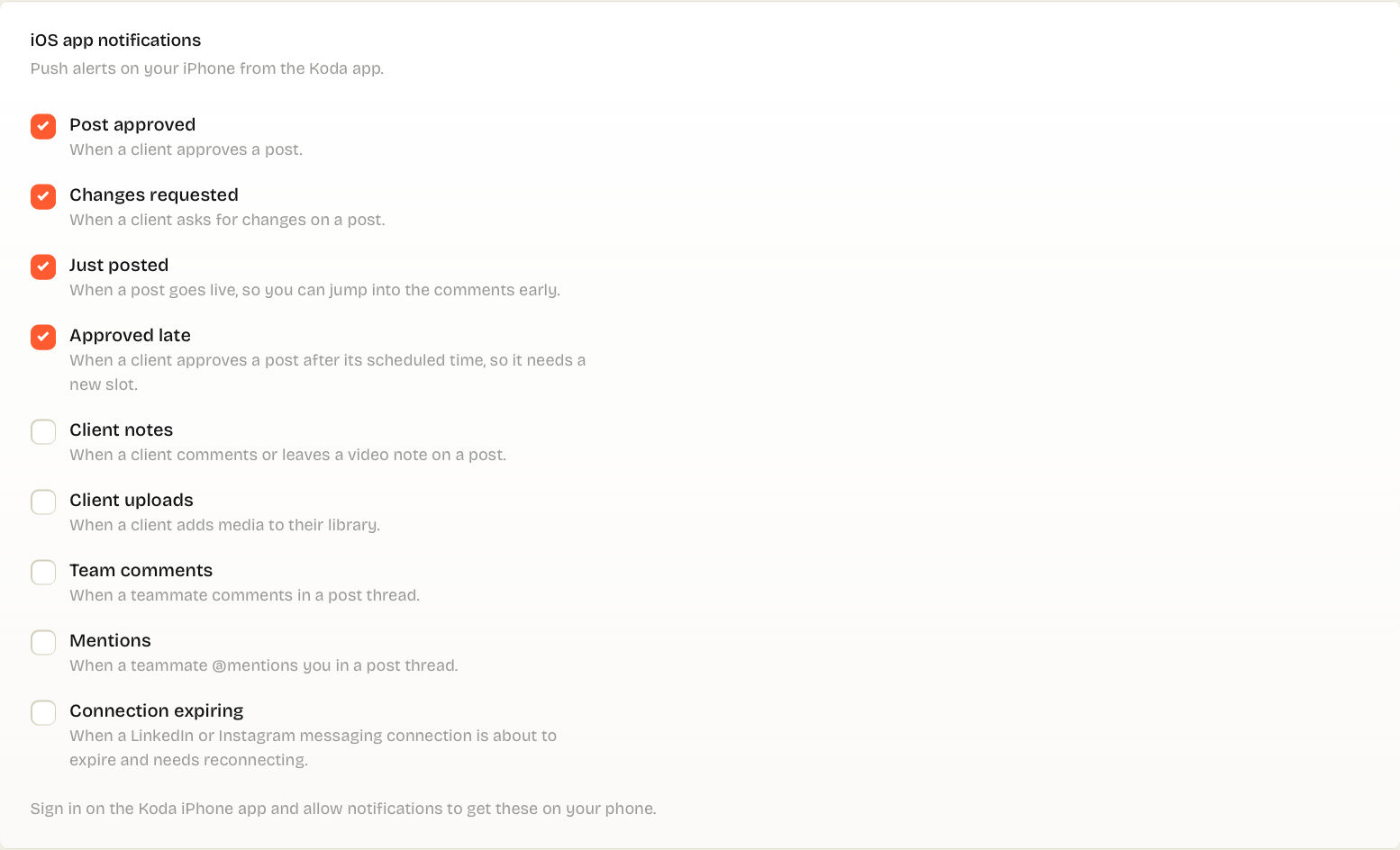
When you first sign in, iOS asks whether Koda can send you notifications. Allow them to get alerts like these:
| Alert | When it arrives | On by default |
|---|---|---|
| Post approved | A client approves a post | Yes |
| Changes requested | A client asks for changes | Yes |
| Just posted | A post goes live, so you can jump into the comments | Yes |
| Approved late | A client approves after the scheduled time, so it needs a new slot | Yes |
| Publish failed | A scheduled post fails to publish (admins only) | Yes |
| Client notes | A client comments or leaves a video note on a post | No |
| Client uploads | A client adds media to their library | No |
| Team comments | A teammate comments in a post thread | No |
| Mentions | A teammate @mentions you in a post thread | No |
| Connection expiring | A LinkedIn or Instagram messaging connection needs reconnecting soon | No |
If you scheduled a reminder for a post or story you're publishing by hand, you'll also get a Time to post or Story to post alert when its slot arrives. Tapping it opens that post.
Tap a notification to open the client it's about.
Choose which alerts you get
In the app, open Notifications in the workspace sidebar and switch each alert on or off. The same switches are under iOS app notifications in your account settings on the web. They apply across every client. Banners and sounds are managed in iOS Settings.
The approval, publishing and late-approval alerts also depend on each client's notification rules. If a client's phone alert is switched off on their Notifications tab (under Setup in the client sidebar), nobody gets it for that client.
What works differently in the app
- Billing: plans and payments aren't available in the app. Manage your subscription on the website.
- Connecting accounts: connecting Instagram, Facebook, TikTok, LinkedIn or YouTube opens Safari to finish. Come back to the app when you're done.
- Saving images: where the website downloads a file, such as a share card, the app shows the image so you can press and hold to save it to Photos.
If your workspace has no active plan, the app shows it as read-only. You can still view your existing work.
Still stuck? Email [email protected] and we'll help.