
Client workspace
Meeting notes
Keep a record of client meetings, dictate or import notes, tidy them up with Enhance and turn action items into tasks.
Meeting notes (under Reference in the client sidebar) is a running log of every call and catch-up with a client. Notes save as you type, so you can take them live during a meeting without worrying about losing anything.
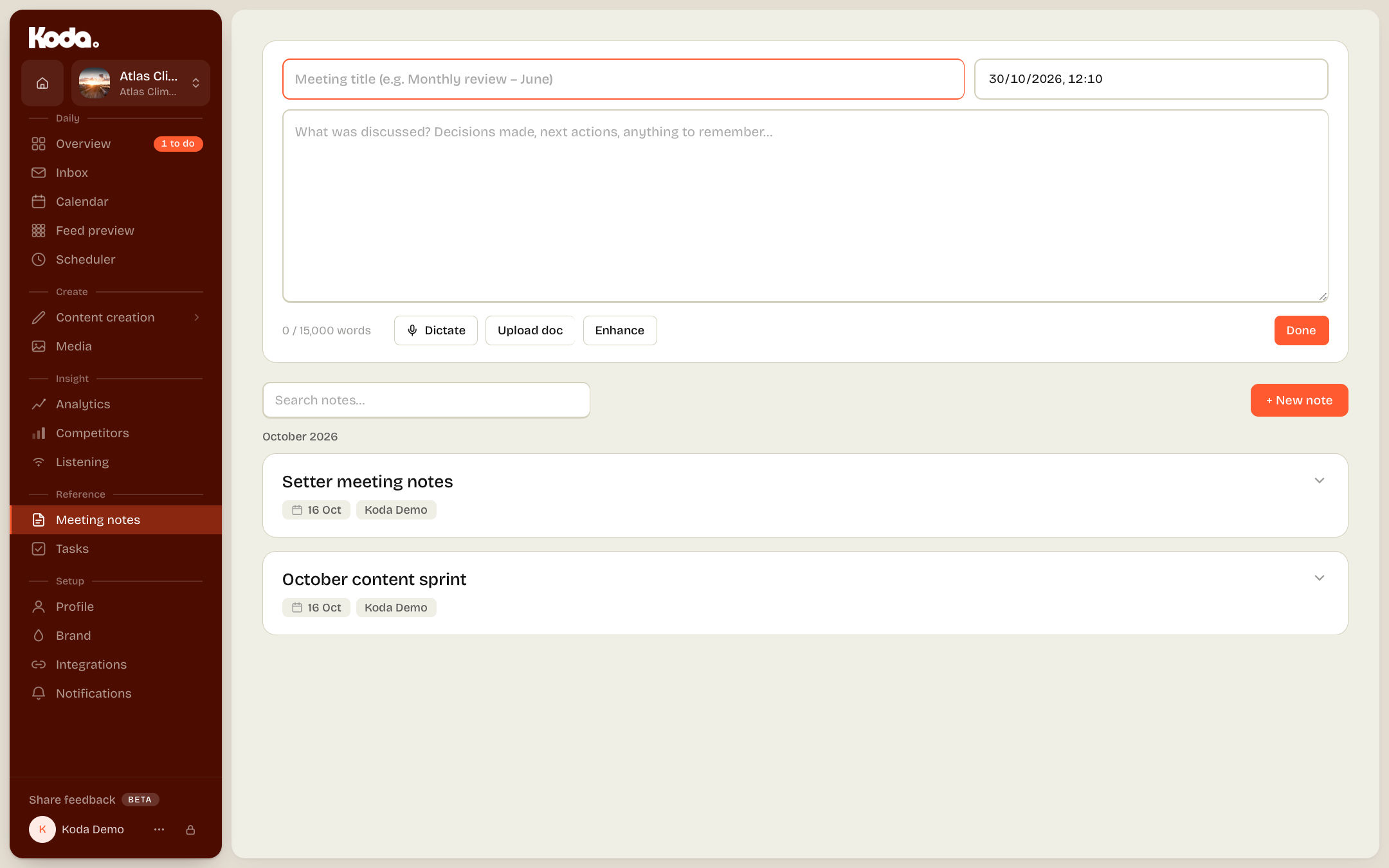
Write a note
- Open Meeting notes and click + New note.
- Give it a title (for example "Monthly review – June"). The date and time default to now; change them if you're writing up an older meeting.
- Type your notes in the box below.
- Click Done when you've finished.
If you leave the title empty, Koda names the note "Meeting" with today's date.
Lines that start with a dash (- ) become bullet points, and a short line directly above a run of bullets shows as a heading. So a line like "Next month" followed by a few dashed lines reads as a tidy section once you close the editor.
Autosave and Done
Notes save automatically about a second and a half after you stop typing. The footer shows Saving…, then Saved. If a save fails it shows Not saved and tries again with your next change.
Done makes sure the last change is saved, closes the editor and creates any action items you've ticked (see below). You can also just click away; your text is already saved.
Each note is capped at 15,000 words. The word count sits at the bottom of the editor.
Dictate or import
- Dictate turns your speech into text in Chrome, Edge or Safari. Your browser asks for microphone access the first time. Press Stop when you're finished. If dictation drops out, Koda tells you and you can press Dictate again to carry on.
- Upload doc imports the text from a
.docx(up to 5 MB) or.txtfile into a new note. If the note has no title yet, the file name is used.
Enhance and action items
Click Enhance to have Koda tidy rough notes into a clear write-up. You need at least five words first. Enhance also picks out action items and lists them under the note with a suggested due date. Ticked ones become tasks for this client when you click Done; untick any you don't want.
Don't like the result? Revert to original (or Revert on an existing note) puts your own text back.
Find, edit and delete notes
Notes are listed newest first and grouped by month. Click a note to expand it, then click the text to edit it in place. Use Search notes… to find a note by its title or content. To delete a note, expand it, open its ⋯ menu and choose Delete.
Still stuck? Email [email protected] and we'll help.