
Planning and publishing
The content calendar
How to use a client's Calendar tab to plan posts, read their status at a glance, move them by dragging, and see every client together on the Dashboard.
Each client has its own content calendar. It's where you add posts, see what's going out and when, and move things around as plans change.
Open the calendar
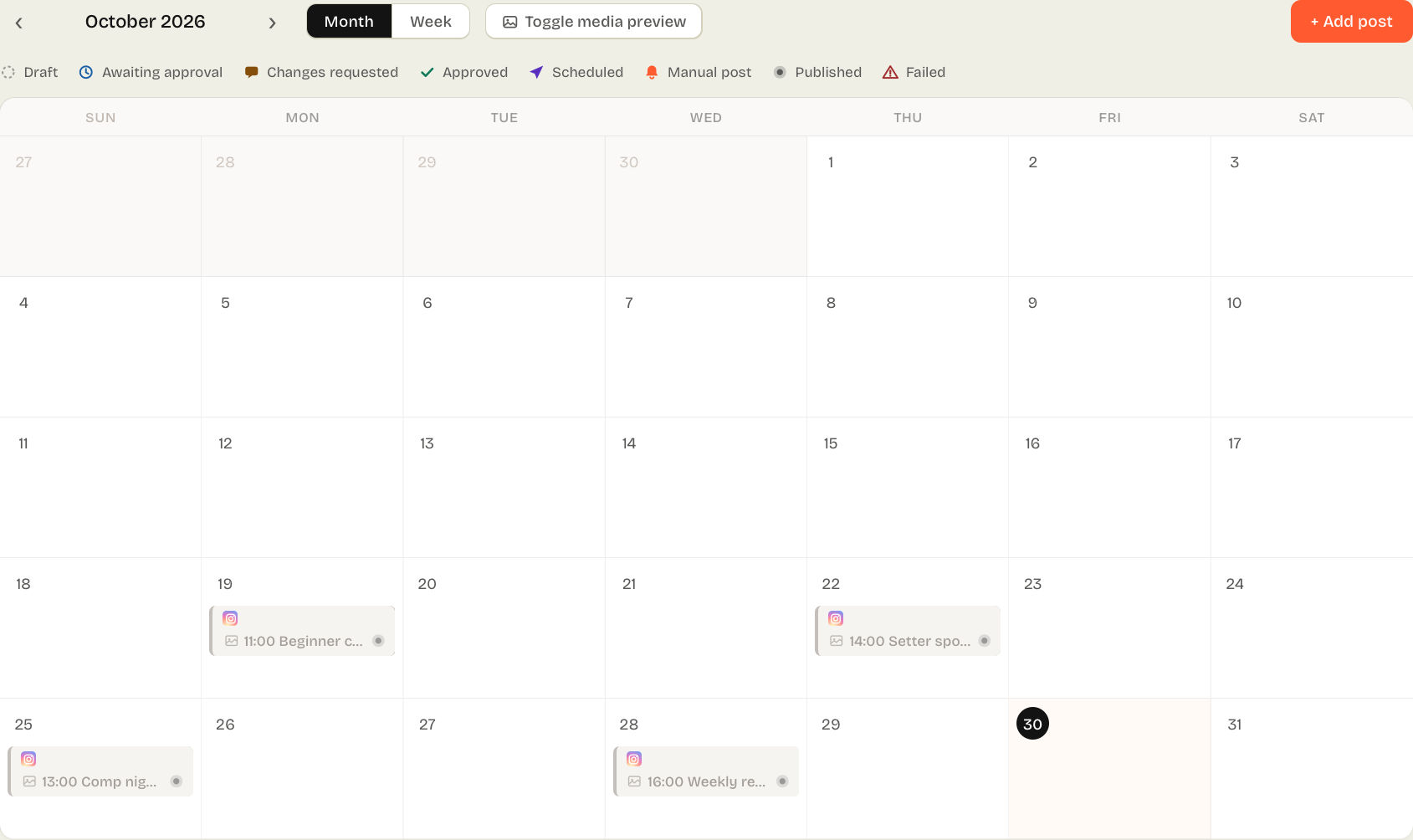
Open a client, then click Calendar (under Daily in the client sidebar). The calendar opens on the current month.
- Use the arrows either side of the month name to move back and forward.
- Switch between Month and Week with the toggle at the top. Week view shows the seven days from Sunday to Saturday as tall columns, which is easier to read on a busy week.
- Click Toggle media preview to show a small thumbnail on each post. Koda remembers your choice in this browser.
- Shoot days from your shoot plans appear as pills at the top of the day. Click one to open the plan.
Add posts and items
- Click + Add post in the top right to start a post dated today.
- Hover over a day and click its +, then choose Add post or Add item. You can also double-click an empty part of a day to add a post, or right-click it for the same menu.
An item is a marker such as a launch, an event or an invoice deadline. It can have notes, a colour, an image or video and documents (up to 25MB each). Only your team sees items, and they never go through approval or publishing.
Read a post's status
Every post shows a small status icon. Click Colour key to see what each one means:
| Status | What it means |
|---|---|
| Draft | Not sent for approval or scheduled yet |
| Awaiting approval | Sent to your client and waiting for an answer |
| Changes requested | Your client asked for changes. The post gets an amber ring |
| Approved | Approved, but not scheduled to publish |
| Scheduled | Koda will publish it at its time |
| Manual post | You'll post it yourself and get a reminder |
| Published | Live on the platforms |
| Failed | Something went wrong. The post turns red |
Hover over a post to see its time, post type, platforms and, for changes requested, the start of your client's note.
Move and organise posts
Drag a post onto another day to move it. The time stays the same. On a phone or tablet, press and hold a post to open its menu instead.
Right-click a post, or click the three dots that appear when you hover, for more options: Send for approval, Open, Duplicate, Edit icon (adds an emoji to the chip), Collab post, Copy view link, Delete and a Colour label.
- Collab post shows the same post on another client's calendar. It still publishes from the original client's accounts.
- Copy view link copies a link anyone can open to view the post, without logging in.
- After Delete, click Undo in the message that appears if you deleted the wrong post.
See every client at once
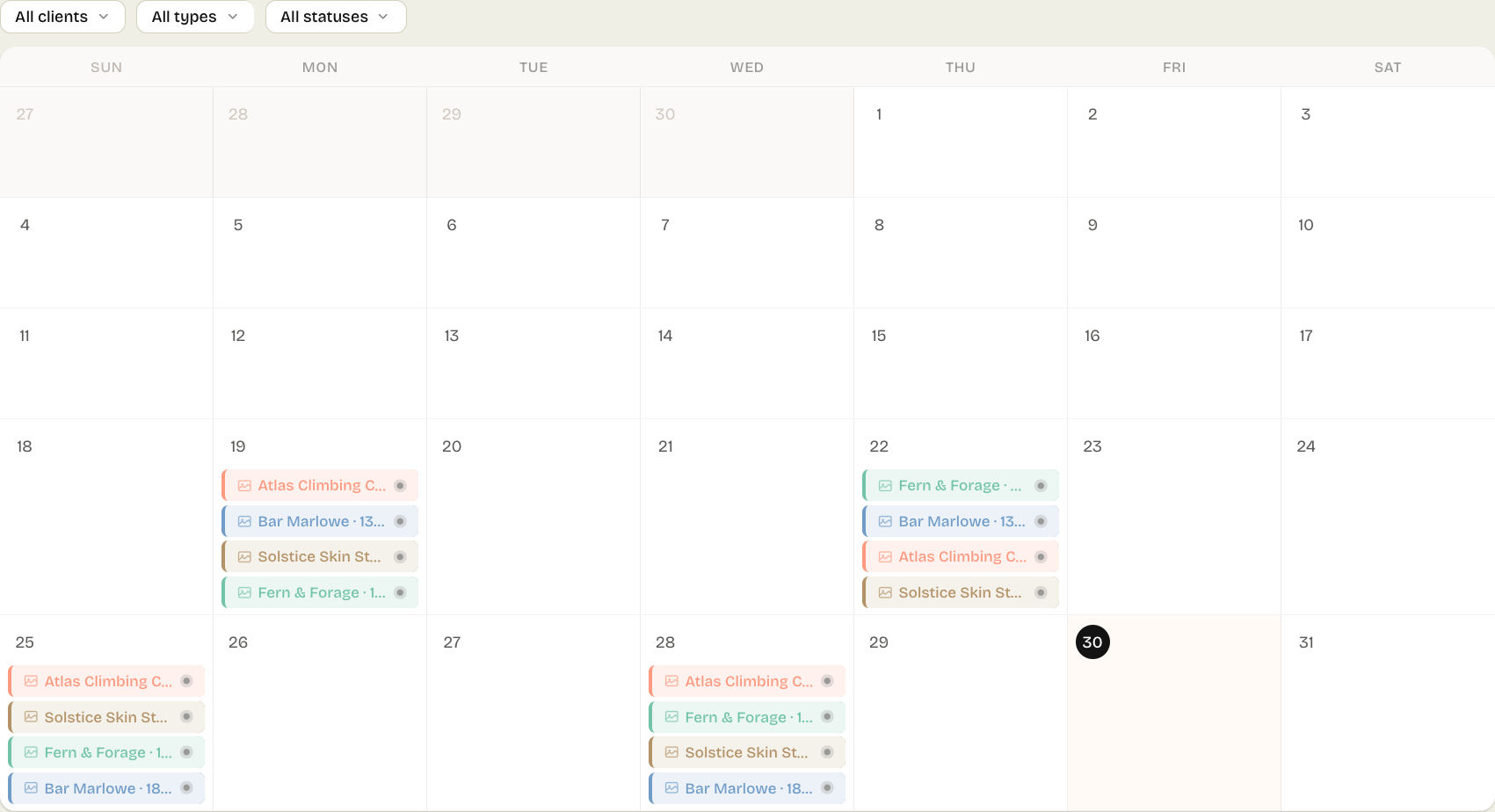
The Dashboard has a combined calendar of every client's posts, colour-coded by client. Filter it by client, content type or status, and click a post to jump into that client's calendar on that day.
What your client sees
Client viewers can see the calendar when you give them access to it. They can open posts but can't add, move or delete them.
Still stuck? Email [email protected] and we'll help.