
Getting started
The product tour
How Koda's built-in tours work, what they cover, and how to replay the client tour.
Koda has two short tours that point out where things are the first time you use them. Each one runs once per person, and you can skip either at any time.
The first-visit tour
The first time you land on an empty dashboard, Koda highlights the + Add client tile with Add your first client. Everything in Koda starts with a client, so this is the only step. Click the tile and the tour ends as the add-client wizard opens.
If you close it, the button keeps a gentle glow until you've added your first client.
The client tour
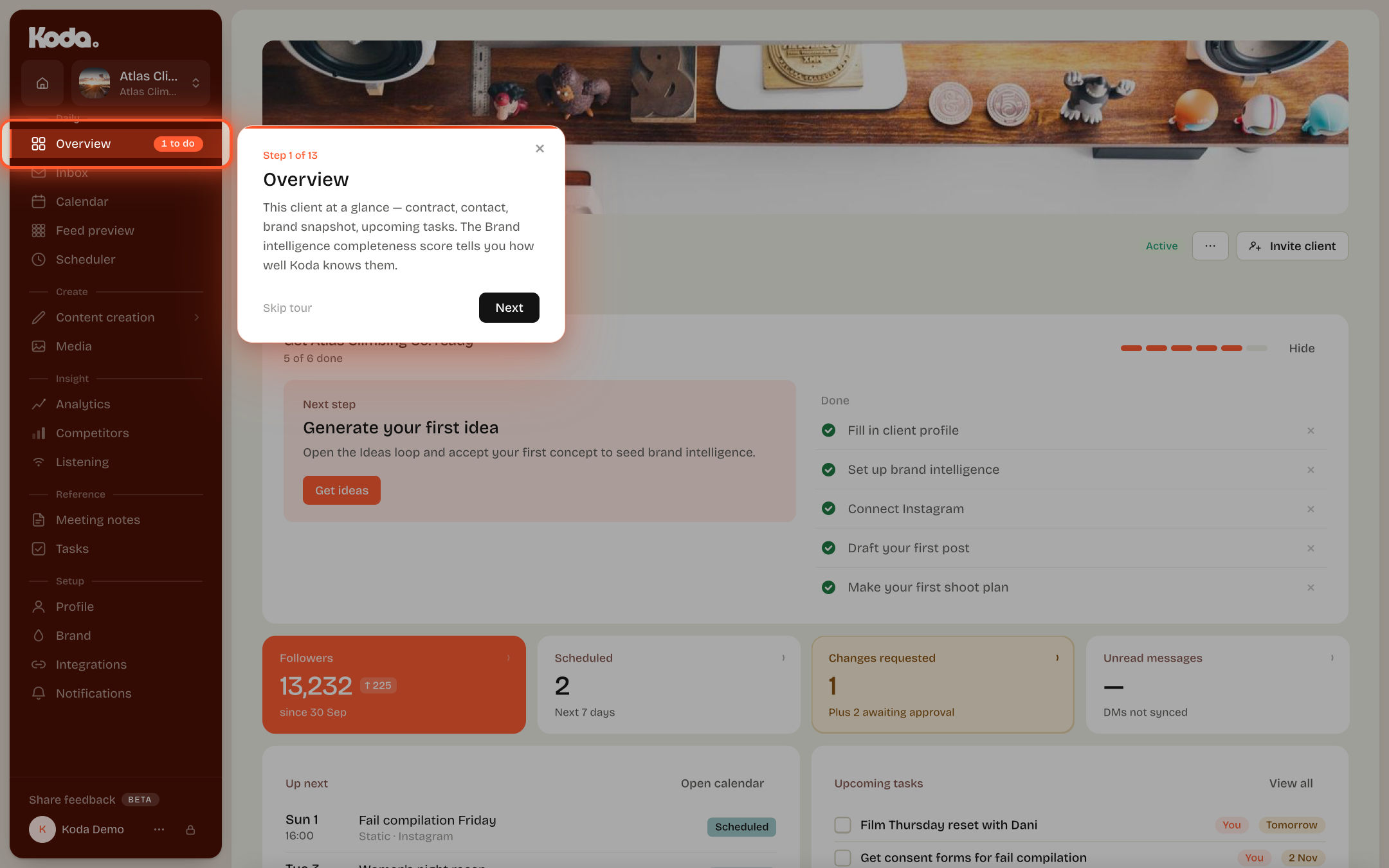
The first time you open a client, Koda walks you down the client sidebar, one tab at a time:
- Overview: the client at a glance, including the brand intelligence completeness score.
- Profile: contact details, social handles and status.
- Brand: the most important setup step. Everything Koda writes reads from this.
- Calendar: plan, schedule and send posts for approval.
- Content creation: captions, shoot plans and ideas, tuned to this client's brand.
- Inbox: Instagram comments and DMs.
- Analytics: Instagram and Facebook Page performance, and client reports.
- Competitors and Listening: what's working for others, and hashtag and tag mentions.
- Meeting notes and Tasks: your record of calls and your to-do list.
- Integrations and Notifications: connected accounts and the alerts Koda sends.
Use Next and Back to move through it, Done on the last step, or Skip tour (or the close button) to stop.
On a phone
On a small screen the tours are shorter. Inside a client, Koda first points out the Home button and the menu button. When you open the menu, it highlights the main tabs.
Replay the tour
Open any client, click the three-dot menu next to your name at the bottom of the sidebar and choose Show tour. The client tour starts again from the top.
Still stuck? Email [email protected] and we'll help.