
Planning and publishing
Create a post
How to use the post composer: add media, write captions for each platform, choose where the post goes and save it as a draft.
The post composer is where you build a post: its media, caption, hashtags, platforms and timing.
Open the composer
- Open Calendar (under Daily in the client sidebar).
- Click + Add post, or hover over a day, click its + and choose Add post.
- To edit an existing post, click it on the calendar.
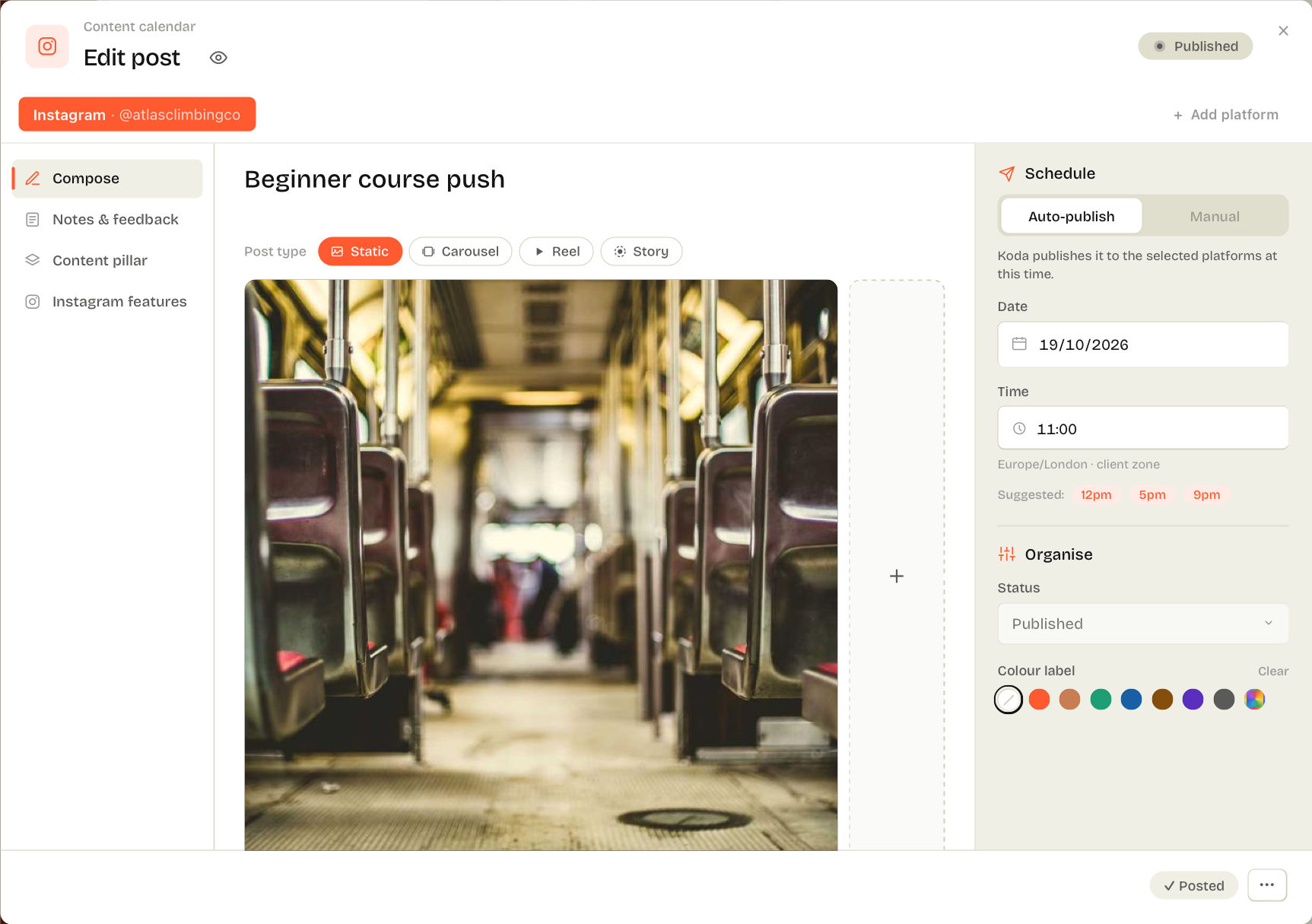
Add media
- Click Upload image or video, or or choose from library to pick something from the client's media library.
- You can also drag files from your computer straight onto the media area.
- Images open a crop step first so you can set the ratio. Click the crop button on the preview later to change it.
- Videos up to 500MB work everywhere. Over that, the video can only go to YouTube (up to 2GB).
- Supported files are JPG, PNG, WebP and GIF images, and MP4 or MOV video. Uploads are also added to the client's media library.
To post several images or videos together, click Make this a carousel, then + Add to carousel. Dropping more files onto a single image or video turns it into a carousel too. Drag the slides to reorder them. See Post formats for reels, stories, PDFs and the limits for each platform.
Choose platforms
The post's platforms show as tabs across the top. A new post starts with the client's connected accounts.
- Click + Add platform to add one, or the × on a tab to remove it.
- Other marks a post for somewhere Koda doesn't publish, so you can still plan it on the calendar.
- A platform has to be connected before Koda can publish to it. See Connect accounts.
Write captions for each platform
Add an optional title, which labels the post on the calendar (on YouTube it becomes the video title), then the Caption and Hashtags.
With more than one platform selected, the first platform you edit becomes the Source. Other platforms stay Synced and copy whatever you write there. Switch to another platform's tab and edit it to give that platform its own title, caption and hashtags; its tab is then marked Customised. Click Apply to all to copy the current tab's text to every platform again.
The counter next to Caption tracks Instagram's 2,200-character limit, which counts the caption and hashtags together. Use Rewrite to have Koda rewrite the caption in the client's brand voice; see AI captions.
Other options
The left-hand menu has more sections:
- Notes & feedback: internal notes, plus the feedback thread with your client.
- Content pillar: tag the post with a theme, such as "Behind the scenes".
- Instagram features: location, first comment, collaborators and tagged people. It shows when Instagram is selected.
On the right, Organise sets a Status and a Colour label for the calendar.
Saving and drafts
There's no save button. Once the post has a date and some content, Koda saves every change automatically and shows Saving… then Saved in the footer. Close the composer whenever you like; the post stays on the calendar as a draft until you schedule it or send it for approval.
From the three-dot menu in the footer you can Duplicate the post or Delete post.
On your phone
On a small screen the composer becomes a single column. Tap Posting to to choose platforms and choose Same everywhere or Customise per platform for captions. Platform settings, cover, notes and pillars sit under Options, and the Goes out button at the bottom sets the date and time.
Still stuck? Email [email protected] and we'll help.