
Connecting accounts
Send your client a connect link
Email your client a secure one-tap link so they can connect their own social accounts without a Koda login or sharing passwords.
You don't need your client's passwords to connect their accounts. Koda can email them a link instead. They open it on their own phone or computer, log in to the platform as normal, and the account connects to their client in Koda. They don't need a Koda login.
Send a link
- Open the client, then Integrations (under Setup in the client sidebar).
- Click Connect on the platform's row.
- Choose My client connects, then click Send them a link.
- Enter your client's email address and click Send link.
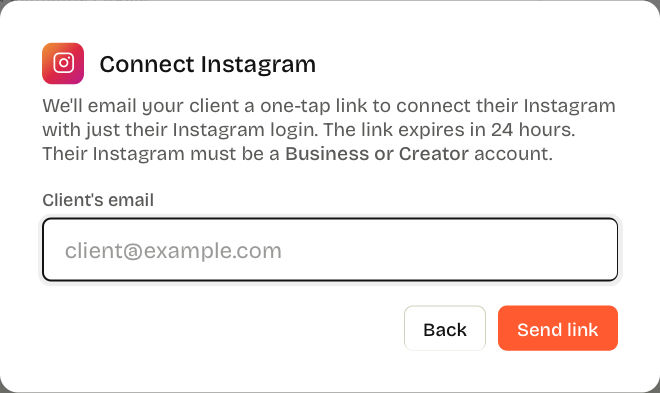
You can send links per platform from a few other places too:
- LinkedIn: in the LinkedIn connections window, click Send link on the Personal profile row. The client can choose their profile or a company Page from the link.
- Instagram DMs: on a Facebook-connected Instagram row, click Send connection link under Instagram DMs.
- New clients: the last step of adding a client lets you click Send link next to each platform.
What your client sees
They get an email from your agency, for example "would like to connect your Instagram + Facebook", with a button to connect. The link opens a page that says "Hi from" your organisation name and explains what's being connected. They log in, approve Koda, and see "Connected. You're done."
What they log in with depends on the link:
| Link | Your client logs in with |
|---|---|
| Their Instagram account | |
| The Facebook account that admins the Page. A linked Instagram connects too, and they're then asked to log in with Instagram to connect messages | |
| TikTok | Their TikTok account |
| LinkedIn, then picks Connect my profile or Connect a company Page | |
| YouTube | The Google account that owns the channel |
When they finish, the person who sent the link gets an email to say it's connected. If you have Integrations open and the row hasn't changed, click Refresh at the top of the tab.
Things to know
- Links expire after 24 hours and work once. If it has expired or been used, send a new one.
- Each platform has a daily limit on how many links your organisation can send.
- Facebook links: ask your client to keep every Page ticked when Facebook asks which Pages to share, including any you already manage through Koda.
- Instagram links: Instagram uses whichever account is signed in on that device. If they manage several accounts, they should open the link in a private window.
Still stuck? Email [email protected] and we'll help.