
Content creation
Content ideas
Generate content ideas one card at a time, swipe to steer them, save the good ones and turn them into a shoot plan.
Ideas gives you one content idea at a time for a client. You react to each one, Koda learns what you like, and the ideas you save can become a shoot plan in a couple of clicks.
Get your first idea
- Open Content creation > Ideas (under Create in the client sidebar). You'll land on the Generate tab.
- Type a topic in Add a topic… and press Enter or click + Add topic. Add one or two. Tighter topics give sharper ideas.
- Click Generate idea.
Topics you've used recently for this client show as Recent chips, so you can click to add them again. Each team member has their own topics and swipe history.
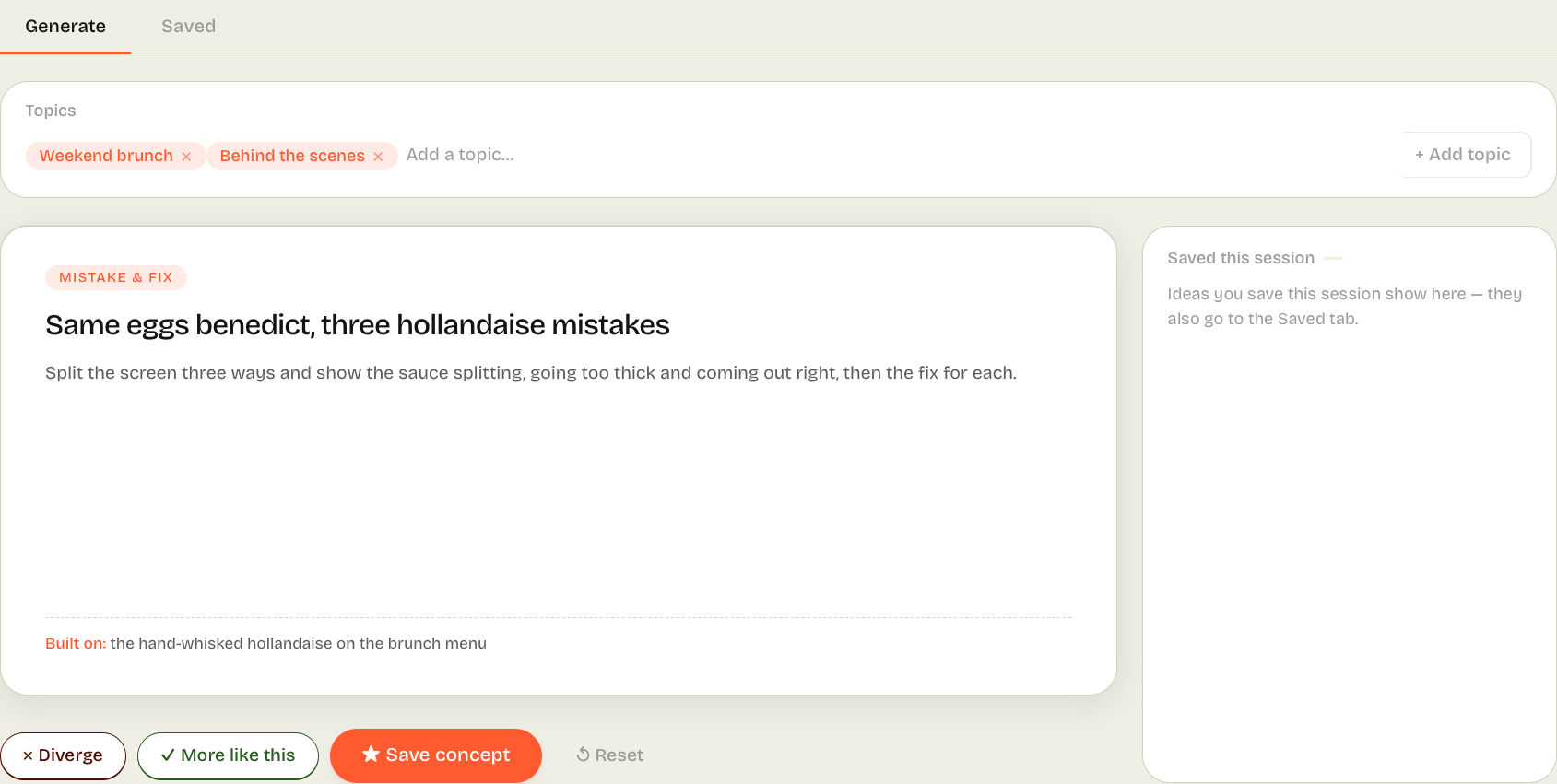
Read an idea card
Each card has a format (for example a how-to, a ranked list or a before and after), a hook, a short description and a Built on: line saying which real detail about the client it starts from. Koda draws on the client's brand memory and your topics, plus, where it has them, the client's own best posts, competitors' top posts and brand listening mentions. It borrows formats from competitors, not their topics.
Steer with the buttons
- ✓ More like this: you like the direction. Keep going.
- ✕ Diverge: push somewhere new. Three in a row and Koda starts a fresh batch in different formats.
- ★ Save concept: keep it. Saving ends the run, and the next idea is one click away with Generate next idea. After three ticks in a row the save button pulses, as a hint you've found something worth keeping.
- ↺ Reset: clears your swipe history for this client and starts fresh. Your topics and saved ideas stay.
If you change the topics while a card is showing, a banner says Topics changed — regenerate to use them. Click Regenerate.
Saved ideas won't come back. Each new one deliberately steers away from what you've already saved.
Saved ideas
Ideas you save in this visit appear under Saved this session beside the card. All saved ideas for the client live on the Saved tab. From there:
- More like this starts a fresh run seeded from that idea.
- × removes it.
Turn ideas into a shoot plan
- Click Generate shoot plan on the Saved tab, or ★ Generate shoot plan in the session panel.
- Tick the ideas you want, then click Generate plan.
- Koda writes a video for each idea, with script, shot list and caption, and opens the new plan, titled "Plan from" and the number of ideas.
You can then add a date, reorder the videos and share it with your client. See shoot plans.
Still stuck? Email [email protected] and we'll help.