
Insights
Client reports
Build a branded performance report for a client, add your own notes, and view it or email it as a link your client can open without logging in.
Client reports turn a client's analytics into a branded page you can send them. You choose the period, platforms, sections and metrics, add a written note, then open it yourself or email it. Your client opens a link in their browser. They don't need a Koda login, and they can print it or save it as a PDF from there.
Before your first report
Reports use your agency's logo and colours instead of Koda's. An admin can set these under Organisation in the sidebar, in the Report branding section. A 500×500 PNG logo with a transparent background works best.
Build a report
- Open Analytics (under Insight in the client sidebar).
- Click Export report ↗. On Instagram, the button is hidden while All time is selected, so pick a set period first.
- Under Period, choose 30, 60, 90 or 180 days.
- Under Platforms, tick the ones to include. Only connected platforms can be ticked.
- Under Sections, choose from Cover page, Your notes, AI summary + focus chips, Charts (views + heatmap) and Top posts.
- Under Metrics, open each platform to pick which stats appear, such as Avg saves and Avg reach for Instagram.
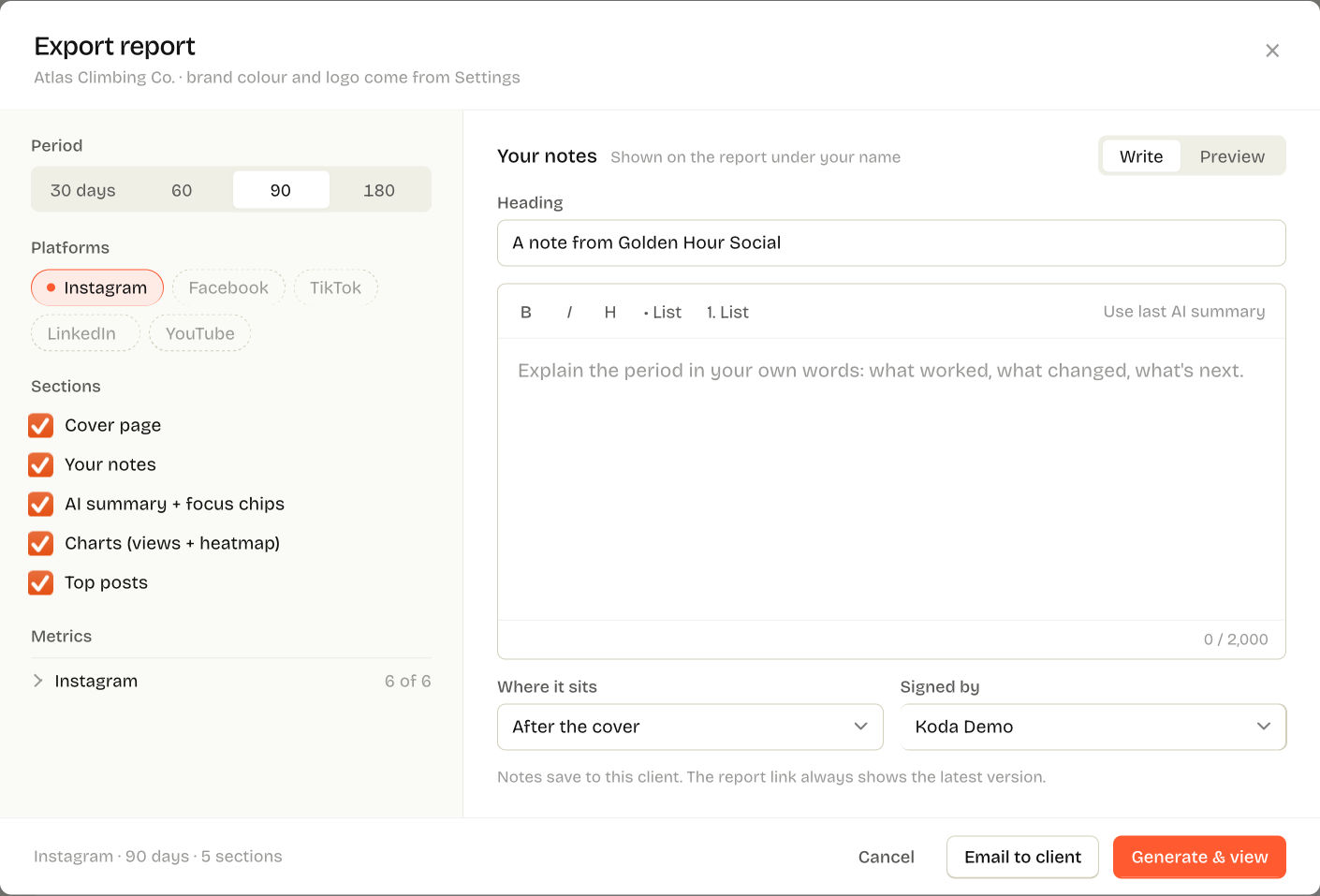
The line at the bottom sums up what you've picked, for example "Instagram, Facebook · 30 days · 5 sections, with your notes".
Add your notes
The Your notes side of the dialog is where you explain the period in your own words: what worked, what changed and what's next.
- Give it a Heading, then write the note. Use the toolbar for bold, italic, a subheading and lists. Notes can be up to 2,000 characters.
- Click Use last AI summary to drop in the most recent AI summary as a starting point, then edit it.
- Under Where it sits, choose After the cover or End of report.
- Under Signed by, choose your name, No sign-off or Custom….
- Click Preview to see how it will look.
Notes save to the client as you type, and the report link always shows the latest version. If you untick Your notes, your draft is kept for next time.
View or email the report
- Generate & view builds the report and opens it in a new tab. If you included the AI summary, Koda writes a fresh one first, which can take a few seconds.
- Email to client asks for an address under Send to. It's filled in with the client's email if you've saved one. Click Send report and your client gets a short email with the headline numbers and a View full report → button.
Each report link works for 30 days. After that, the page tells the recipient to ask you for a new one. To keep a permanent copy, open the report and click Print / Save as PDF.
Send reports automatically
To send a report on the same day every month without opening the dialog, set up a monthly report under Notifications (under Setup in the client sidebar). See Notifications.
Still stuck? Email [email protected] and we'll help.