
Planning and publishing
The Scheduler tab
How to use the Scheduler tab to see a client's publishing queue, approved posts that still need a time, failed posts and what went out in the last 30 days.
The calendar shows everything you're planning. The Scheduler shows only what's going out, what's gone out and what needs your attention, so it's the quickest place to check a client's publishing.
Open the Scheduler
Open a client and click Scheduler (under Daily in the client sidebar). Posts are grouped into up to four sections. Empty sections are hidden.
| Section | What's in it |
|---|---|
| Queued | Posts scheduled to publish, and manual posts with a reminder set, soonest first. Each shows a countdown, such as "in 3h" |
| Approved — needs a scheduled time | Posts your client approved that have no publish time yet, so they won't go out until you give them one |
| Failed | Posts that didn't publish to one or more platforms |
| Published in last 30 days | What went out recently, newest first |
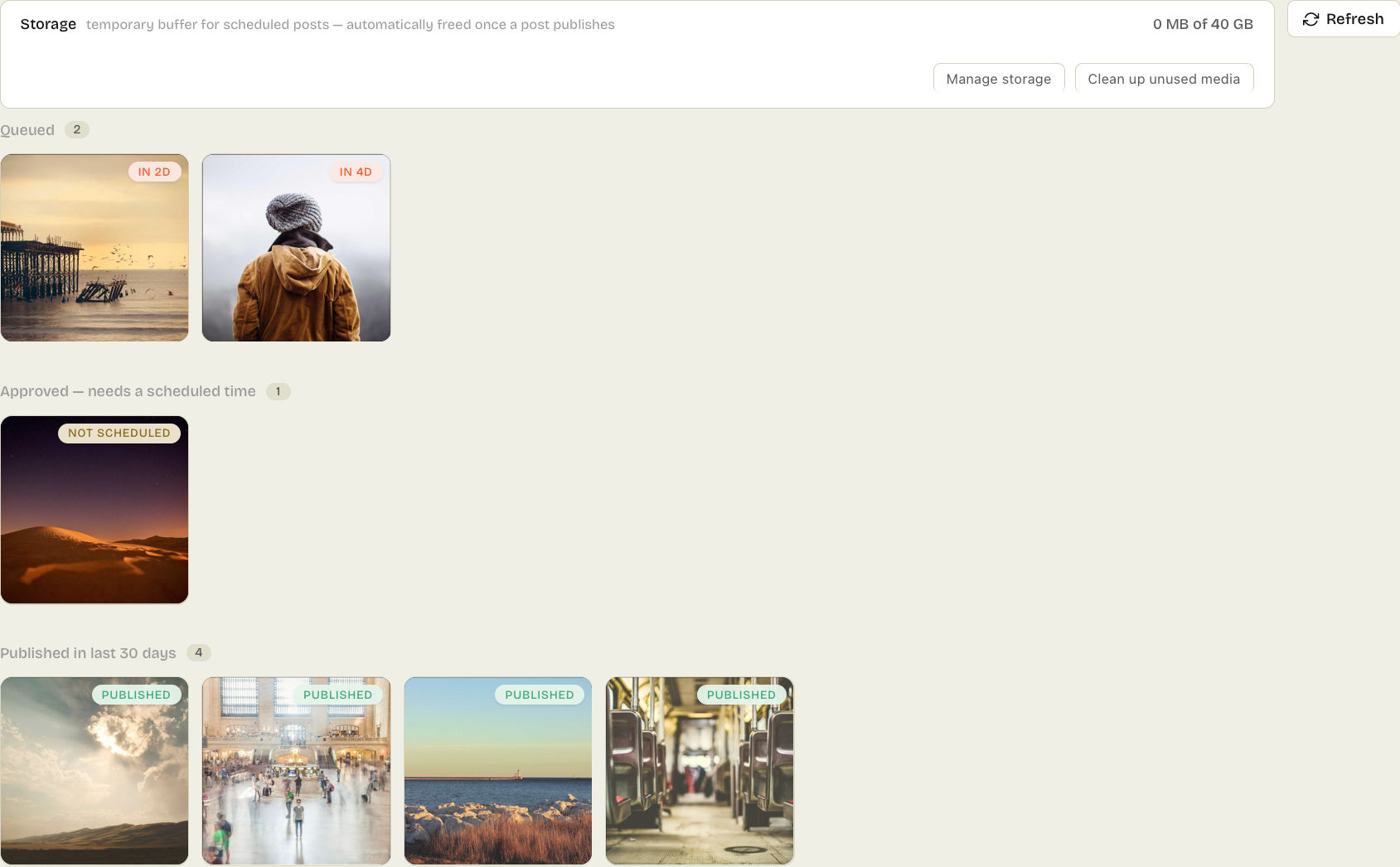
Click Refresh to reload the list.
Preview and act on a post
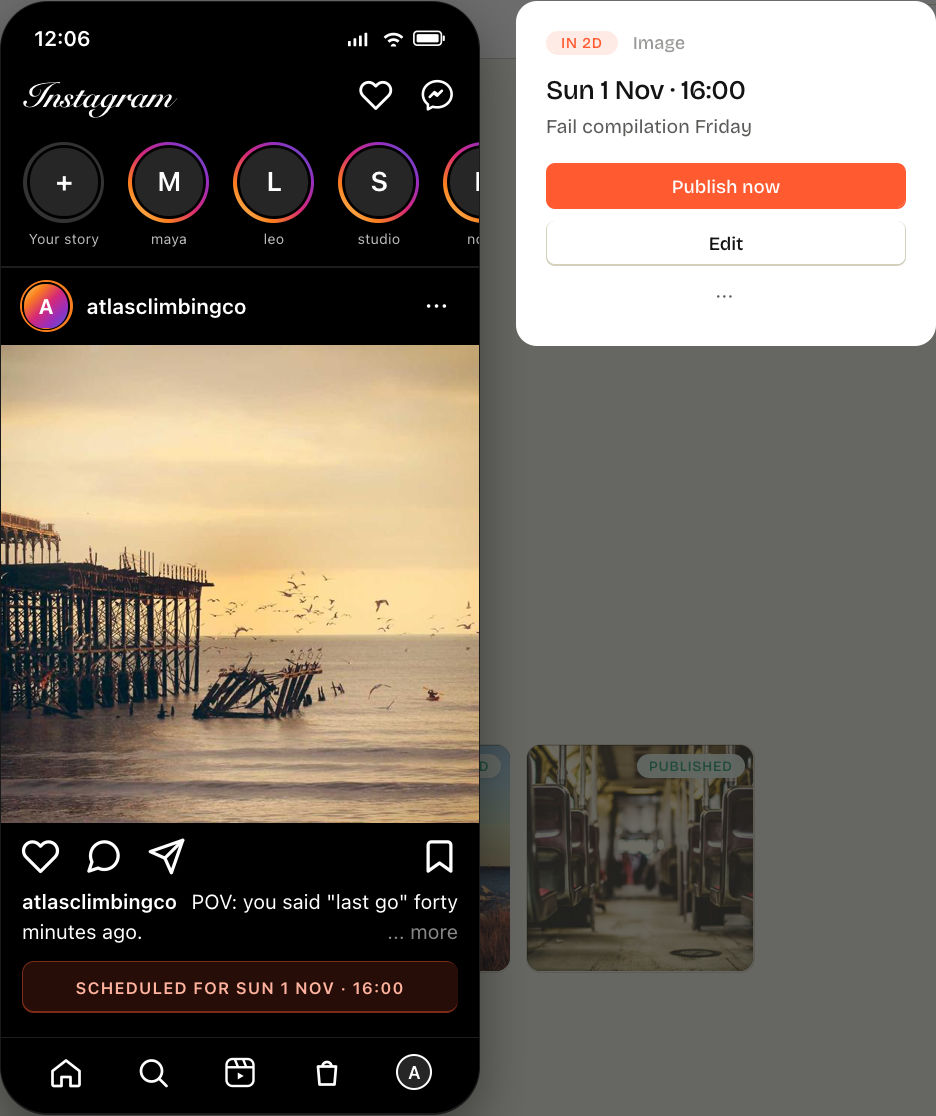
Click any post to open a preview of how it will look on the phone, with tabs for Instagram, TikTok and LinkedIn when the post goes to more than one of them. Next to the preview are its time, type, platforms and actions:
- Queued posts: Publish now to post straight away, Edit to open it in the composer, or Cancel scheduling from the ⋯ menu. Cancelling keeps the post on the calendar but stops it publishing.
- Queued manual posts: Mark as posted once you've posted it yourself, Edit, or Cancel reminder.
- Failed posts: the reason for each platform that failed, Retry publish and Edit. For posts going to several platforms, a row shows which ones already went out.
- Published posts: View post opens it on the platform, and the ⋯ menu has links to the other platforms and View in calendar.
Storage
The bar at the top shows how much of your workspace's media storage is in use. Media for scheduled posts is freed automatically after the post publishes, so you don't need to tidy up after every post. Manage storage opens the Storage page, and Clean up unused media removes uploads that aren't attached to any saved post.
What your client sees
If your client viewer can see the calendar, they can see the Scheduler too, without the storage bar. When it's empty they're told that approved posts will show there as they queue up and publish.
Still stuck? Email [email protected] and we'll help.