
Client approvals
Approval links
Create a no-login link your client can tap to review and approve posts, then copy it, send it or turn it off.
An approval link lets someone review and approve posts without a Koda account or password. They tap the link and they're in. It suits a one-off approval, or a client who won't set up a login.
Create a link
- Open the client's Overview (under Daily in the client sidebar) and click Invite client.
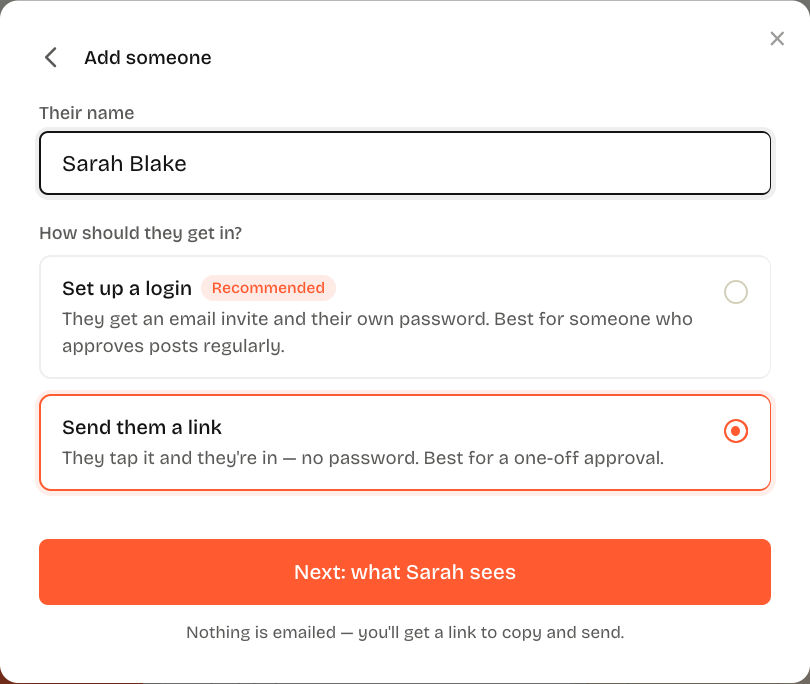
- Click Add someone and enter Their name.
- Under How should they get in?, choose Send them a link. Nothing is emailed.
- Click Next: what [name] sees and pick what the link can open. Approvals is always on. See What your client can see and edit.
- Click Create [name]'s link.
Admins can create links for any client. Staff can create them for clients they can see.
Send or copy the link
When the link is ready you can click Copy link and paste it into an email or message. On a phone or a browser that supports it, Send to [name] opens your device's share sheet.
You can copy it again any time. Click Invite client, find the person under Has access, open the ⋯ menu and choose Copy link.
What the link opens
The link opens the client's portal, limited to what you chose for it, and only for this one client. The person lands on their Approvals list and can approve posts and leave feedback, the same as a client with a login.
Each link is named after the person you made it for. Approvals and feedback made through it show that name, so make one link per person rather than sharing one around.
The Has access list shows when each link was last opened, or "not opened yet".
Turn a link off
Open the ⋯ menu next to the person under Has access and choose Turn off [name]'s link. Anyone using it loses access straight away. If they open it again they see "This link has been turned off. Ask your agency to send a fresh one."
To change what a link can open without turning it off, choose Edit what [name] sees from the same menu.
Good to know
- Links don't expire. A link works until you turn it off, so treat it like a key.
- Koda doesn't email link holders when you send a post for approval. Let them know there's something to review, or use a login if you want Koda to email them. See Give your client a Koda login.
- Opening a link signs that browser into the link. If you test a link yourself, use a private window so you stay signed in to your own account.
Next steps
Still stuck? Email [email protected] and we'll help.