
Content creation
Set up a client's brand
Fill in the Brand tab from the client's website and brand guidelines PDF, add example captions and set tone, rules and visuals for the AI to follow.
The Brand tab (under Setup in the client sidebar) is everything Koda reads before it writes for a client. Captions, shoot plans, ideas and inbox replies all start here, so a few minutes spent on it pays back in every draft.
Start with the website
When a client has no brand memory yet, the tab opens with Start here.
- Paste the client's website address and click Analyse. It takes about twenty seconds.
- Koda lists what it found: tone, personality, caption style, emoji usage, what the business does, products or services, audience, selling points, industry, location, contact details and social handles, and the logo if it can find one.
- Click Apply on the rows you want, the cross to dismiss a row, or Apply all. Applied fields save automatically. Applying the logo sets it as the client photo.
Koda reads the home page and a few linked pages. If a site blocks it, Koda gathers the details from web search instead and says so. Sites that load their content with JavaScript may not give much, so fill those details in by hand.
To scan again later, click the Website tile under Sources.
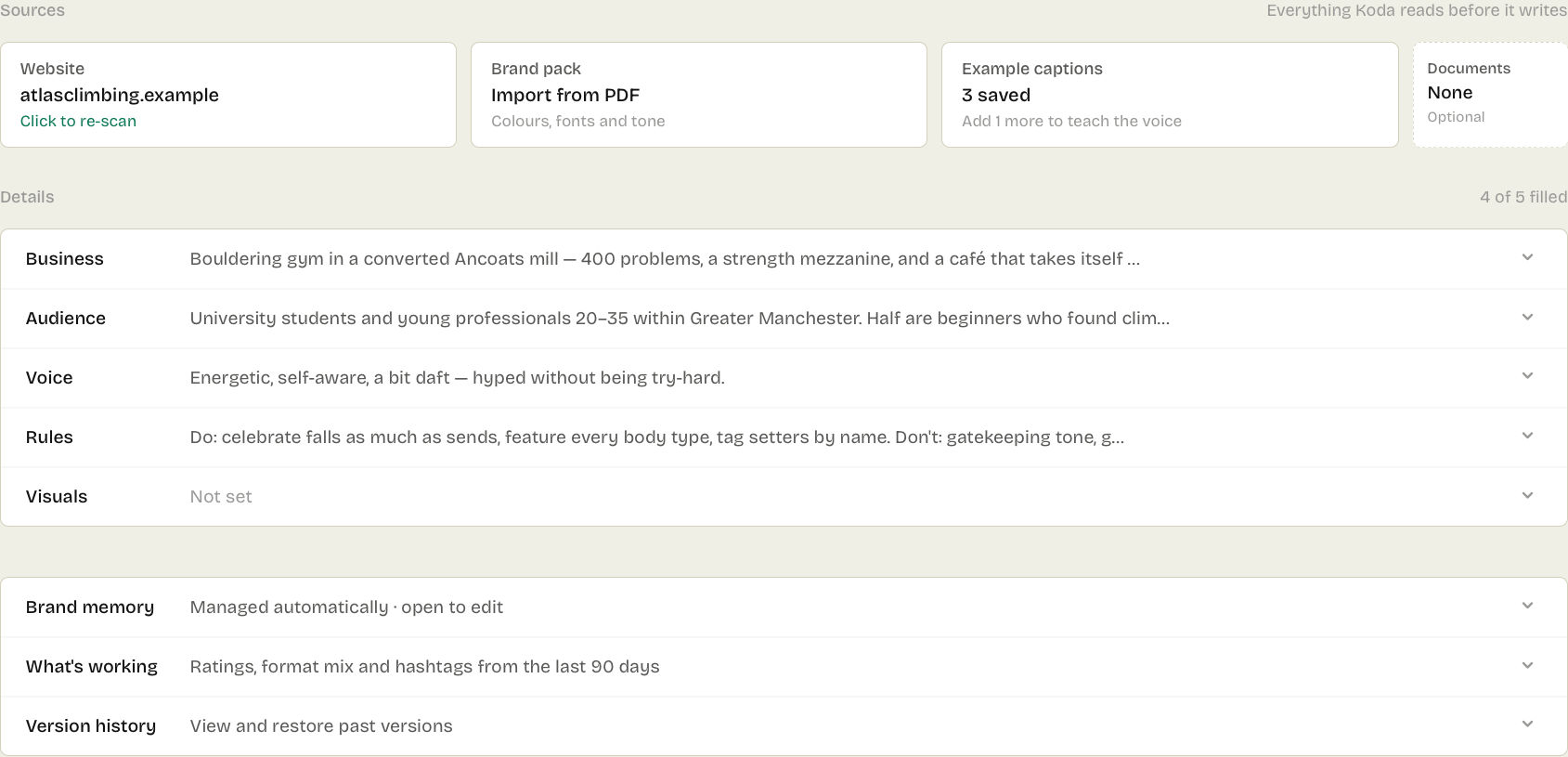
Sources
The Sources row shows everything Koda reads before it writes:
- Website: the scan above.
- Brand pack: upload the client's brand guidelines as a PDF, up to 25MB. Koda reads up to 50 pages for the heading font, body font and three to six brand colours, then lets you apply them like the website scan. Image-only PDFs work too, as long as they're under 20MB and 100 pages. The website and the brand pack read different things, so most clients want both.
- Example captions: click it, then Add caption to paste captions the client loves, with a platform (Instagram, TikTok, Facebook or General) and an optional note. Four or more teaches the voice reliably.
- Documents: optional .md files such as a tone of voice guide. See brand documents.
Details
Five rows hold the profile. Click a row to open it. The label shows how many are filled, for example "3 of 5 filled".
| Row | What goes in it |
|---|---|
| Business | Business description, industry, location, key services or products |
| Audience | Target audience, unique selling points |
| Voice | Tone of voice, caption style, brand personality traits (comma separated), emoji usage |
| Rules | Do's, don'ts, additional notes |
| Visuals | Brand colours (Add colour), heading and body fonts, font notes |
Everything saves as you type. Emoji usage and the do's and don'ts are treated as hard rules every time a caption is written.
Who can edit
Admins, and staff who have the edit clients permission, can change the Brand tab. Other staff can read it but won't see the editing controls. Client viewers don't see it.
Still stuck? Email [email protected] and we'll help.