
Team and account
Invite and manage your team
Invite teammates to your Koda organisation, choose which clients they can see, understand seats on your plan, and remove people.
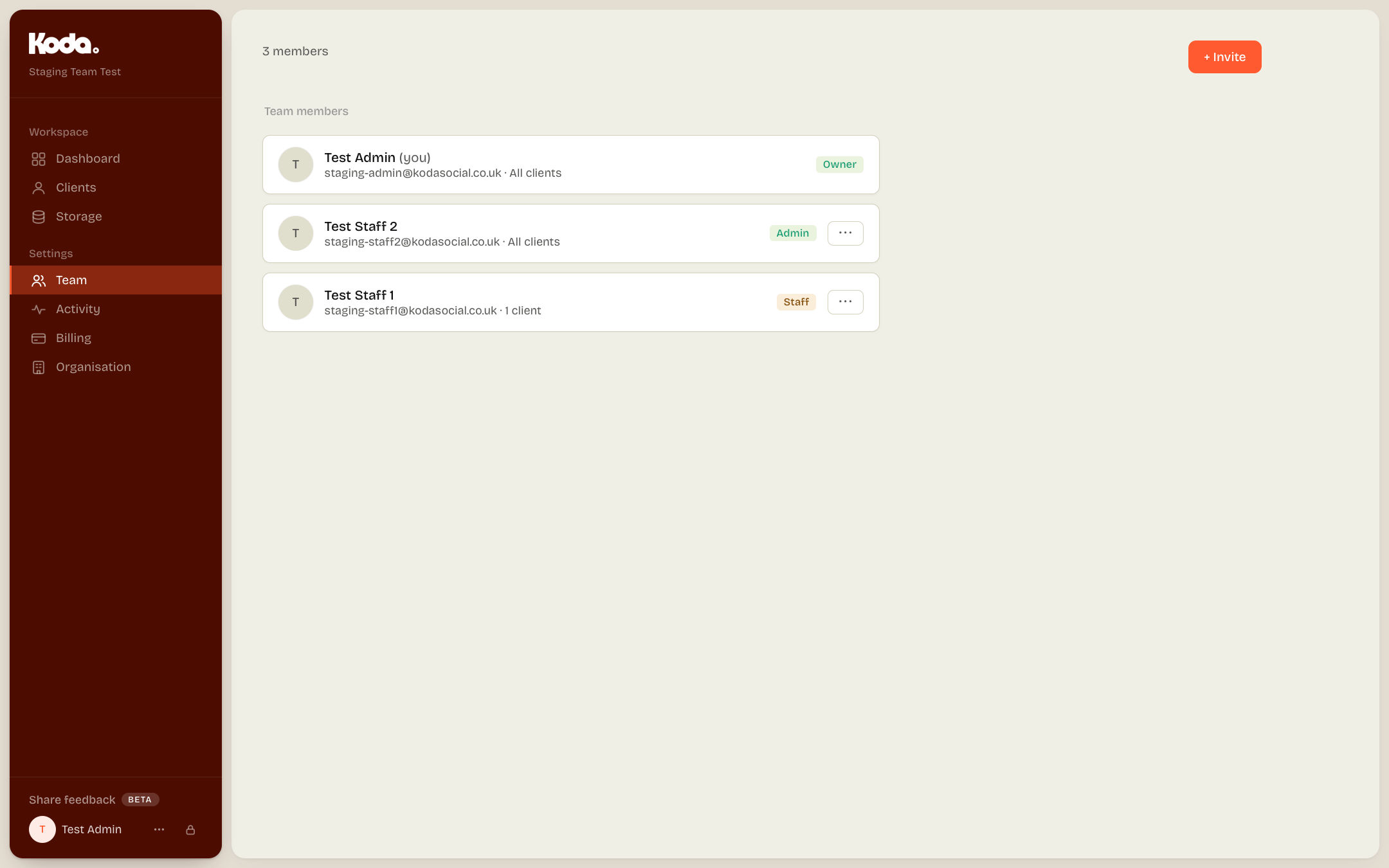
Teammates work inside your organisation with you. Admins manage the team from Team in the workspace sidebar (under Settings). Staff don't see this page.
Invite a teammate
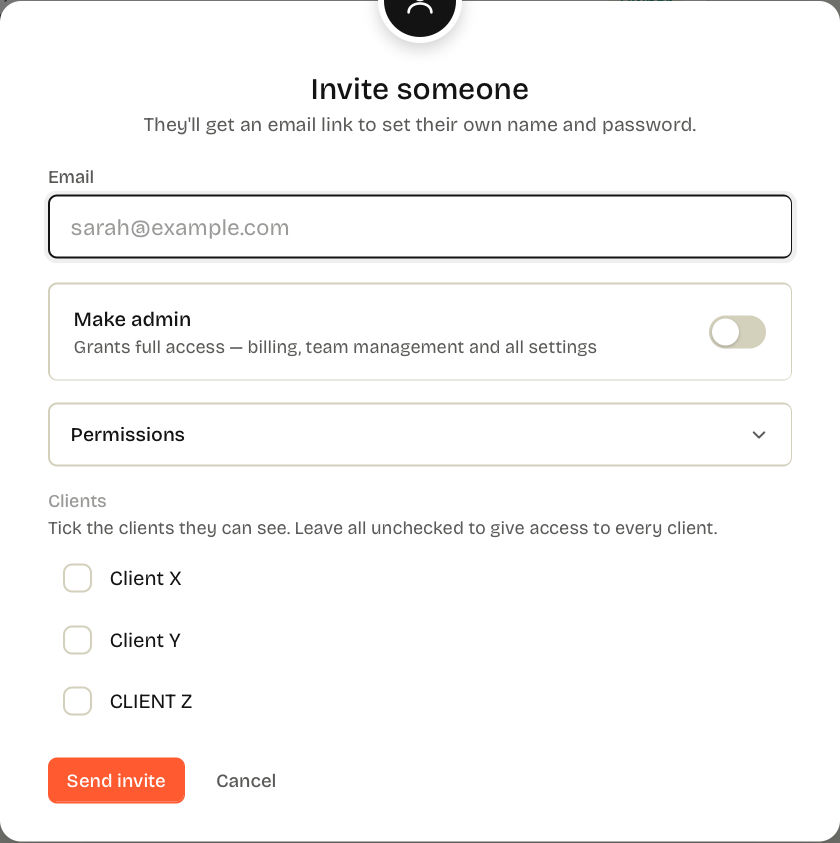
- Open Team and click + Invite.
- Enter their Email.
- Open Permissions to choose what they can do: Add clients and Edit client info are on by default, Delete clients is off.
- Under Clients, tick the clients they can see. Leave them all unticked to give access to every client, including ones you add later.
- Click Send invite.
The organisation's owner also sees a Make admin switch. Admins get full access, including billing, team management and every setting, so permissions and client choices don't apply to them.
They get an email with a link to set their name and password. The link lasts seven days. Until they accept, they're listed under Pending invites, where you can Resend or Cancel invite.
Seats on your plan
Admins, staff and pending invites all use a seat. Client viewers don't.
| Plan | Team members |
|---|---|
| Freelancer | Just you |
| Personal | 2 |
| Studio | Unlimited |
| Agency | Unlimited |
If you move to a plan with fewer seats than people, the owner always keeps theirs, then the longest-standing members keep theirs. Anyone left over shows No seat on your plan, can't sign in until you upgrade or free a seat. Nothing they made is lost.
Change what someone can do
Click ⋯ on a team member's row:
- Permissions changes a staff member's permissions and which clients they can see.
- Make admin or Make staff changes their role. Only the owner can do this.
- Remove from team takes them out of the organisation.
You can also manage access from the client's side. On a client's Overview, find Team in the Client details card and click Manage, then tick who can see that client.
Remove someone
Click ⋯ then Remove from team. They lose access to every client straight away. Their posts, tasks and notes stay with you, tasks assigned to them become unassigned, and any approval links they created are turned off. They keep their Koda login and can start their own organisation.
The owner can't be removed, and only the owner can remove another admin.
Client viewers
The Client viewers section lists your clients' own logins, grouped by client. Click Resend invite if someone hasn't joined yet, or Remove to take away their access to that client.
Still stuck? Email [email protected] and we'll help.