
Content creation
AI captions
Generate on-brand captions, rate and edit them to teach Koda the client's voice, and write reel captions from what's said in the video.
Koda writes captions in each client's voice using Brand intelligence. You can generate them in the caption generator, rewrite a draft inside a post, or have Koda listen to a reel and caption it.
Generate captions
- Open Content creation > Captions (under Create in the client sidebar).
- Under What's the post about?, describe the post.
- Choose the Platform (Instagram, TikTok, LinkedIn or Facebook) and Length: Short, Medium, Long or Match brief length.
- Set Number to 1, 2 or 3, then click Generate captions.
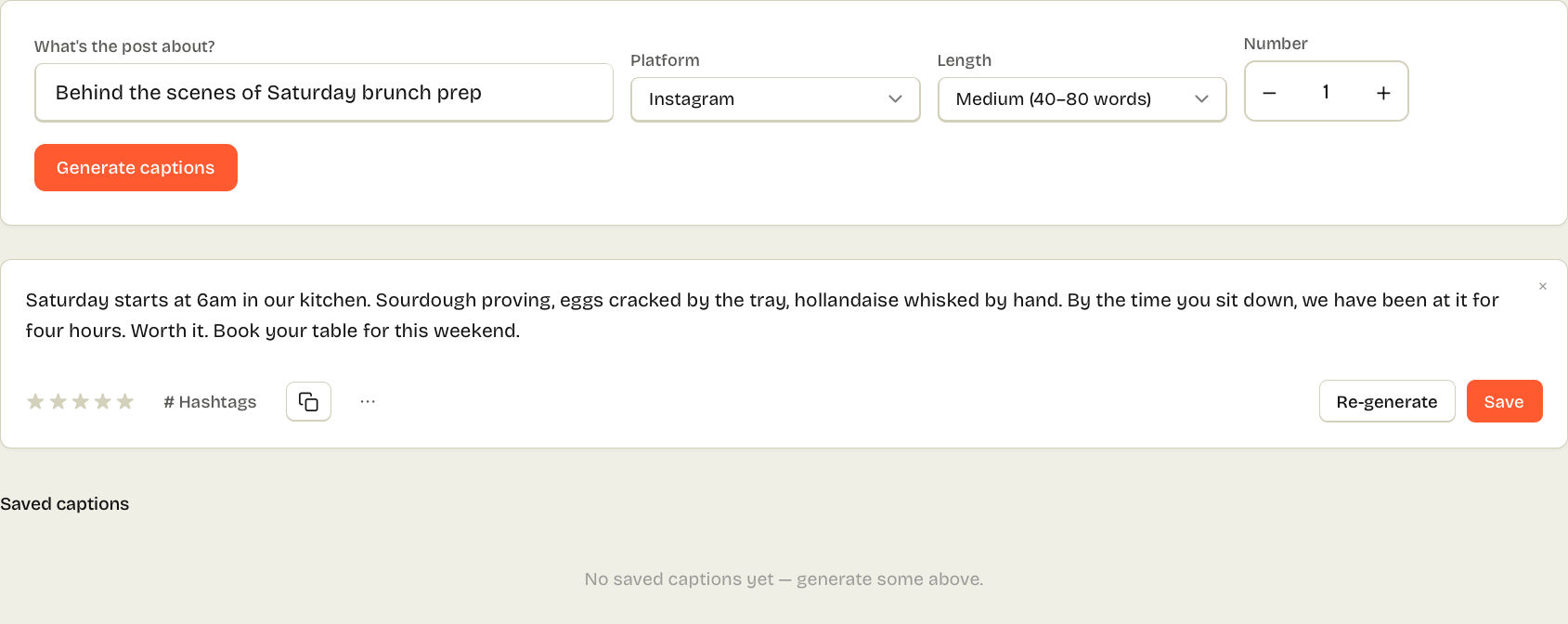
Each result can be edited right in the card before you save it. Under each one:
- # Hashtags suggests 12 hashtags for that caption. See hashtags.
- Re-generate writes a new version. If you've rated it, the rating steers the rewrite.
- ⋯ > Give feedback lets you say what to change (for example "less salesy"), then Submit feedback. ⋯ > Add emojis opens the emoji keyboard.
- Save adds it to Saved captions below, where you can Copy or Delete it later.
Ratings and edits teach the voice
Rate a caption with the stars before you save it, or rate saved captions later. Here's what the ratings do:
- Captions rated 4 or 5 stars become style examples. Koda shows its best-rated captions for the client to the AI every time it writes a new one.
- 1 and 2 star captions tell Koda what to avoid when it refines the client's brand memory.
- If you edit a caption before saving, the gap between Koda's draft and your final version is kept as a signal of the client's real voice.
When you re-generate a rated caption, a 4 or 5 star rating gets you a variant in the same tone with a new hook. A 1 or 2 star rating gets you a completely different angle.
Ratings, edits and published posts feed the background learning that keeps brand memory up to date. See brand memory.
Rewrite inside a post
In the post composer, write a rough caption, pick a length (Match length, Short, Medium or Long) and click Rewrite to rewrite it in the client's voice. On a phone, these tools sit together in the Caption tools sheet.
Transcribe and caption a reel
When the post is a reel, the composer shows Transcribe & caption. Koda transcribes what's said in the video, then writes a caption to go with it. It doesn't just summarise the script. Use Shorten or Extend to change the length, give feedback, or click Use to put it in the caption box.
- The button shows Preparing video… while a fresh upload is processed, then Transcribing…. Longer videos can take a couple of minutes. Click the button again to cancel. If it's still not done after three minutes, Koda asks you to try again in a few minutes.
- It needs speech. Transcripts are made in English, and a video with only music, or no clear speech, returns a message saying there's nothing to build a caption from.
Who can use it
Every admin and staff member with access to the client can use AI captions. There's no separate AI permission. Client viewers can't generate captions. All AI writing draws on your plan's monthly allowance. See AI usage limits.
Still stuck? Email [email protected] and we'll help.