
Billing
Manage your subscription
Change plan, switch between monthly and yearly billing, use a discount code, update your card, find invoices and cancel, all from the Billing page.
Everything to do with paying for Koda lives on the Billing page. Only admins can see it: open Billing under Settings in the main sidebar. You can also get there from Organisation, under Billing, by clicking Manage billing.
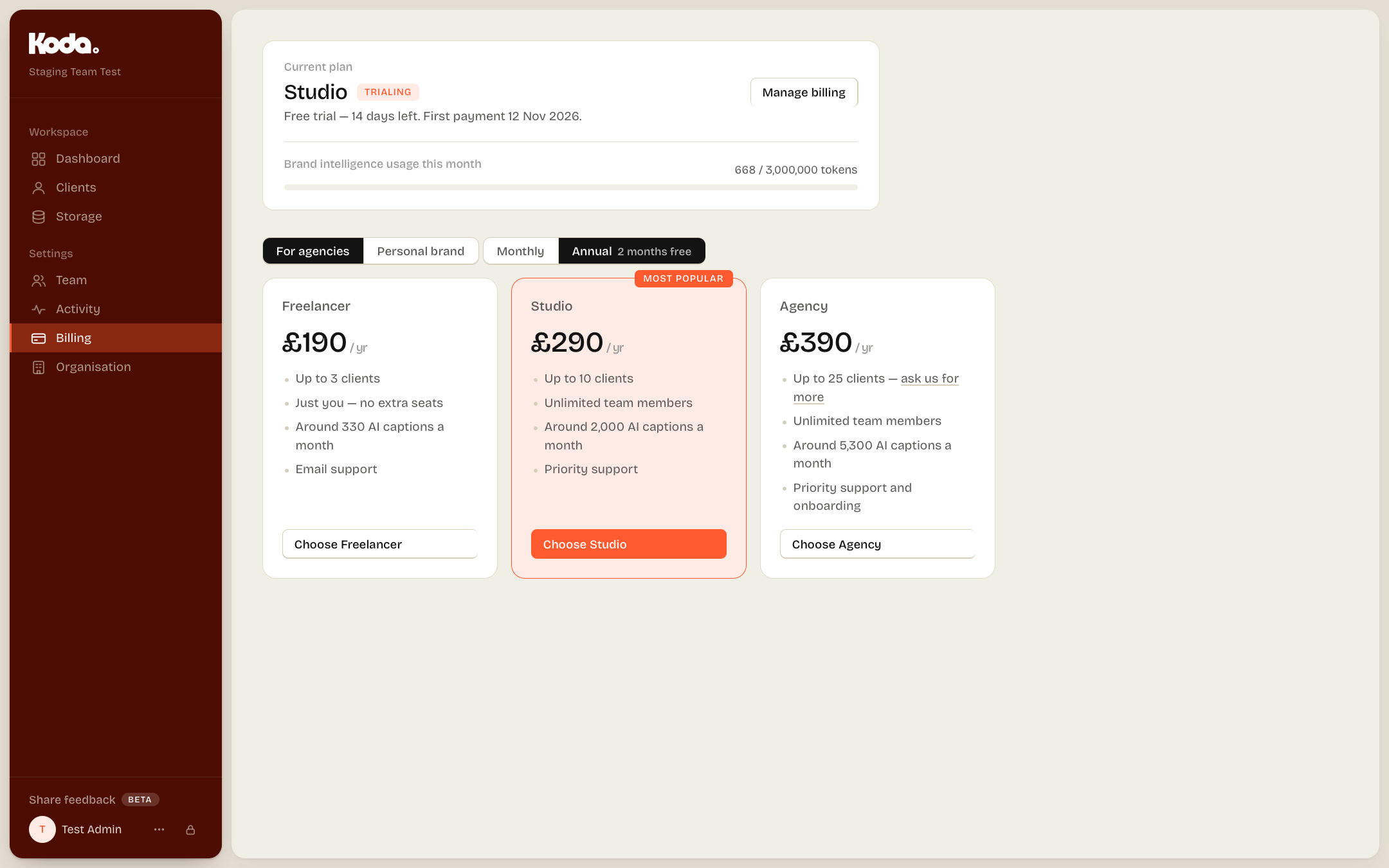
Your current plan
The card at the top shows:
- your Current plan, with a status label if it isn't simply active (for example during a trial or after a failed payment)
- when it renews, or how many trial days are left and the date of your first payment
- Brand intelligence usage this month: how much of your monthly AI allowance you've used
Change plan
- Choose For agencies or Personal brand to see the right plans.
- Choose Monthly or Annual. Annual gets you two months free.
- Click the plan you want, for example Choose Studio.
- Stripe shows the change for you to confirm. When you're done, you return to Koda and see "Plan updated."
Plan changes are prorated, so you only pay the difference for the rest of your billing period, and any discount you already have carries over. To switch between monthly and yearly billing, pick the other billing period in step 2, then your current plan.
Moving to a smaller plan
If your new plan allows fewer clients than you have, Koda locks the extra clients rather than deleting them. It keeps the clients you've used most recently, and the next time you open your client list as an admin it asks you to choose which stay active. Click Keep selected active, or Upgrade instead.
Locked clients show a Locked badge. They're read-only and their scheduled posts don't publish until you upgrade.
Team seats work the same way. If you have more team members than the new plan allows, the account owner keeps their seat, then the longest-standing members. Anyone over the limit can't sign in until you upgrade or free up a seat. See Team.
Discount codes
You add a discount code on the Stripe checkout page when you start your plan. The plan picker reminds you: "Got a discount code? Add it on the next screen."
Update your card, see invoices or cancel
Click Manage billing on the plan card. Stripe's billing page opens in a new tab, where you can update your payment method, see past invoices, and cancel your subscription.
The Manage billing button only appears once your organisation has a subscription.
Cancelling
Cancel from Manage billing. Once the subscription has ended, your workspace becomes read-only: your clients, posts and history stay in Koda, but you can't add or change anything until you choose a plan again.
To come back, open Koda and choose a plan. Your one free trial can't be reused, so you're charged straight away. See Your free trial.
Still stuck? Email [email protected] and we'll help.